
The best work prompts for iPhone are short, specific, and tied to an output you can send or use immediately. ChatMore works well for this because you can paste messy context, add a screenshot when visible information matters, and ask for a structured result.
Use these prompts for meetings, project updates, decisions, and task planning. For a focused task, follow the related email-reply guide, resume guide, or writing prompt library.
A reliable work prompt formula
A useful work prompt usually has four parts: context, task, constraints, and output format. This helps the AI avoid generic advice and produce something you can act on from your phone.
For example, instead of asking for a better email, explain who will read it, what decision you need, what tone to use, and how long the reply should be.
- Context: what happened and who is involved.
- Task: what you want ChatMore to produce.
- Constraints: tone, length, deadline, and details to preserve.
- Format: bullets, table, email, checklist, or short message.
An example brief
- 01 · InputBring context
An email asking whether Tuesday’s meeting still works
- 02 · RequestAsk a focused question
Draft a reply under 80 words that confirms the time and asks for the agenda.
- 03 · CheckReview the result
Check the date, time, recipient, and commitment before sending.
Choose a prompt that fits the task
Use these prompts when your work crosses meetings, decisions, and project planning. For a single task, try the email-reply guide, resume guide, or writing prompt library linked below.
Before drafting, name the result you need: a reply, application, meeting brief, decision note, or project plan. That choice gives ChatMore a useful format and gives you a clear way to check the answer.
Example workflow
Prompt: identify whether this task belongs to an email reply, resume, general writing, meeting, decision, or project-planning workflow. Explain the choice, then produce the requested output.
Prompts for meetings and notes
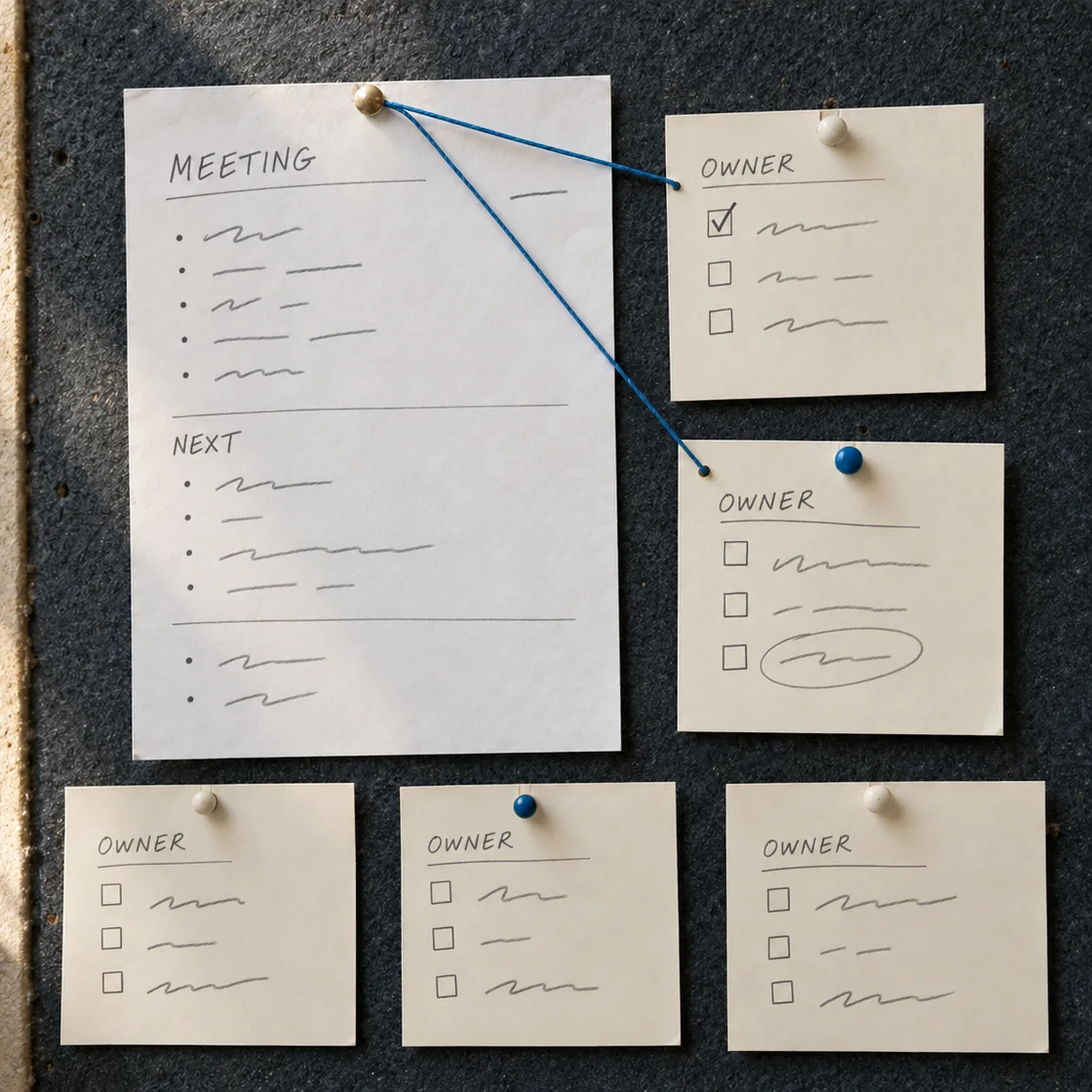
Meeting prompts should turn raw notes into decisions, owners, risks, and follow-ups. This is especially useful on iPhone when you need to send a quick recap after a call.
ChatMore can also help prepare for a meeting by turning a goal into agenda items and likely questions.
- Summarize notes into decisions, open questions, owners, and next actions.
- Create a meeting agenda from this goal and background context.
- Turn these scattered notes into a status update for leadership.
Prompts for decisions and quick analysis
For analysis tasks, ask ChatMore to separate facts, assumptions, risks, and recommendations. This keeps the output grounded and easier to review before sending.
If you are using a screenshot, ask for visible facts first, missing context second, and a recommendation third. That makes the answer more auditable and avoids treating hidden information as fact.
Example workflow
Prompt: turn this context into a one-page decision brief with facts, assumptions, options, tradeoffs, recommendation, unresolved questions, owner, and next review date.
Prompts to try
Turn these messy notes into a clear work update with sections for progress, risks, blockers, and next steps. Keep it under 180 words.
Create a meeting agenda from this goal. Include five questions we need answered and a short follow-up template.
Summarize this thread into decisions, open questions, owners, and next actions. Flag anything that seems unresolved.
Create a decision brief from this context. Separate facts, assumptions, options, tradeoffs, recommendation, and unresolved questions.
Turn this goal into a seven-day task plan with priorities, dependencies, owners, risks, and a definition of done.
Describe the visible facts in this work screenshot, list missing context, then create a concise status update without inventing hidden data.
Quick checklist
- Include audience, tone, and desired length.
- Ask for a concrete output you can use immediately.
- Request a shorter second version before sending.
- Use screenshots only when visible context matters, and separate facts from inference.
- Move email, resume, and general-writing tasks to their specialist ChatMore guides.
Try the workflow on your iPhone.
Open ChatMore with a question, a draft, or a screenshot. Check the result, then refine it for your task.
Download ChatMoreCommon questions
What is the best AI prompt for work?
The best work prompt includes context, the task, constraints, and output format. For example, ask ChatMore to rewrite a message for a specific audience, tone, and word count.
Can ChatMore summarize meeting notes?
Yes. Paste your notes and ask for decisions, owners, open questions, risks, and next actions.
Can I use these prompts from iPhone?
Yes. These prompts are written for mobile workflows where you paste context, get a usable draft, and copy it into another work app.
When should I use a specialist prompt guide?
Use a specialist guide when the job is mainly an email reply, resume, general writing task, or web-research workflow. Keep this page for work that combines meetings, decisions, planning, screenshots, and project updates.
Sources and product details
ChatMore publishes this guide. Product features, availability, limits, and prices can change; consult the current official information before choosing a plan.