
Talking to an AI and talking into a text box can look similar: both start with a microphone. The difference appears next. Does the app answer aloud and keep the conversation going, or do your words appear as text for you to check?
That choice matters more than the microphone icon. A spoken conversation suits an idea you want to work through. A dictated prompt suits a message, note or instruction whose details you want to review before asking ChatMore to do the work.
The short answer
ChatGPT Voice is a spoken back-and-forth conversation. iPhone Dictation turns what you say into text in a text field, so you can check and edit it before sending. Choose a voice conversation to explore a question aloud; choose dictation when you want control over the exact prompt. ChatMore also has speech-to-text input for its GPT chats and a separate Voice conversation mode.
ChatGPT also has its own recording-to-text feature, called dictation. It returns text you can edit before sending. That is separate from Apple’s keyboard Dictation, even though both can supply an editable prompt rather than start a live spoken exchange.
Dictation does not rewrite your thoughts into a finished answer. It supplies the text. You still need to tell ChatMore what to make from those words: a short handover, a clearer explanation, a reply or a list of next steps.
What should happen after you speak?
- I want to talk it through
- Use a voice conversation. Ask a question, listen to the answer and follow up aloud.
- I want to check every word first
- Use dictation. Review the resulting prompt as text, correct it and then send it.
- I want a useful written result
- Include the task, facts and format. Speaking your notes is the input; the checked final note is the outcome.
Turn a spoken thought into a clear handover
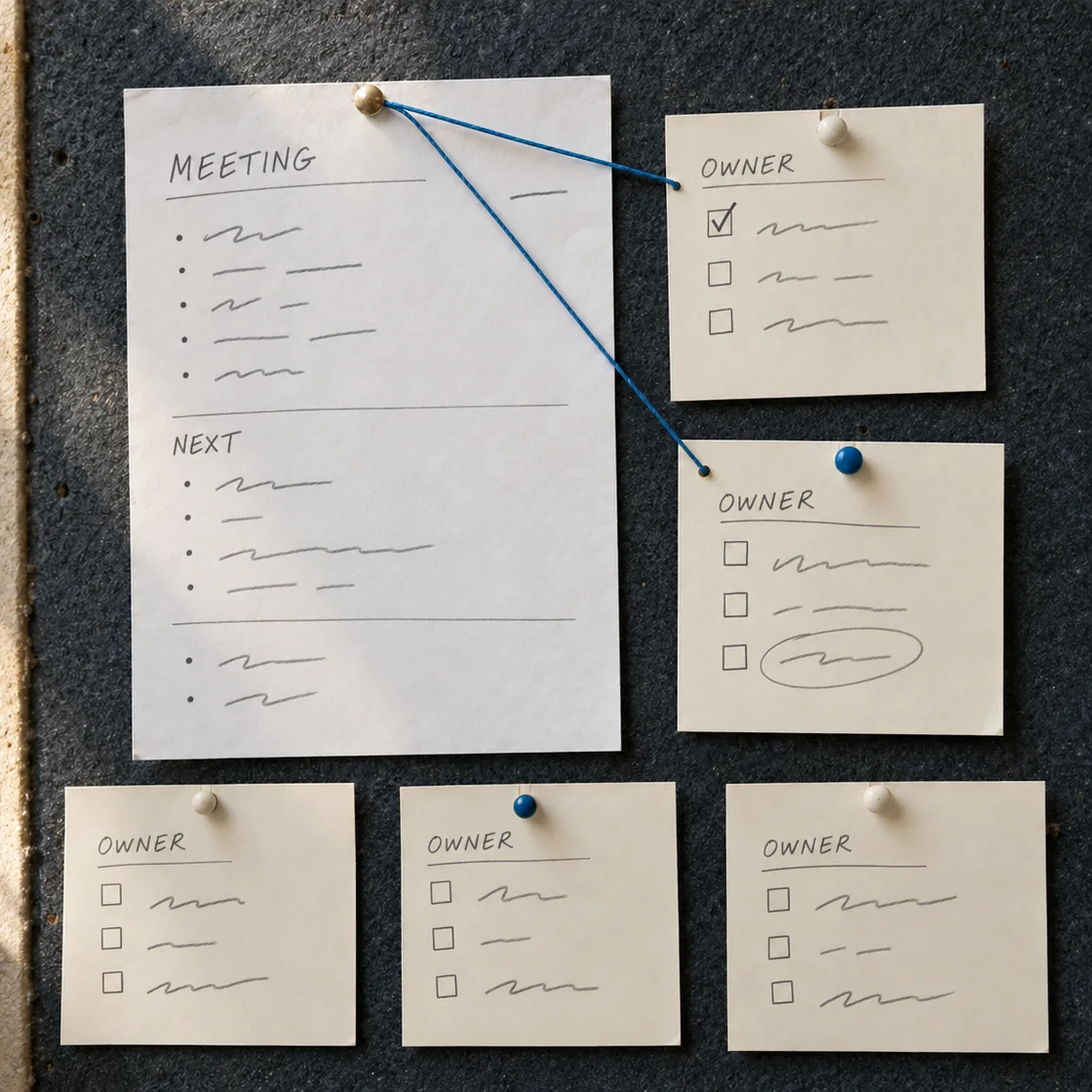
Suppose you have three things to tell a colleague: the draft is ready, two charts still need work and a review time has not been confirmed. Dictating those thoughts is a quick way to capture them. Asking ChatMore for a short handover gives the reader a useful structure.
This fictional example keeps the uncertain part uncertain. It does not turn a suggested review time into an agreed deadline. Copy the complete prompt below into ChatMore, or use it as a pattern for your own spoken notes.
Before sharing the result, check that there are two charts, Monday is the planned update time and Tuesday remains a request. No person, completed task or agreed deadline should be invented.
For other workplace tasks, try ChatMore prompts for work on iPhone.
From rough notes to a handover you can use
Example handover
- Ready
- The report draft is ready.
- Next step
- I plan to update the two charts on Monday morning.
- Needs confirmation
- Could you review it on Tuesday? Please confirm whether that works.
Copy spoken-notes handover prompt
Turn these fictional rough notes into a short work handover with three labels: Ready, Next step, Needs confirmation. Keep every fact unchanged. Write in the first person. Do not invent names, completed work or an agreed deadline. Notes: The report draft is ready. I still need to update two charts and plan to do that on Monday morning. I want to ask my colleague to review the report on Tuesday, but they have not agreed to that day. Keep the whole handover under 65 words.
Use dictation when the wording needs a check
Apple’s keyboard Dictation works in places where you can type. Tap into the prompt field, bring up the keyboard and use its microphone to speak. Stop dictation, read the text and correct it before sending. If Dictation is unavailable, check Settings, General, Keyboard and Enable Dictation; supported languages and features can vary.
The review step is the reason to choose this route. Pay attention to names, amounts, dates and small words such as “not”. A transcript that says the review is confirmed gives ChatMore a different instruction from one that says it is not confirmed.
For the handover example, say the task first: “Turn these notes into a short work handover.” Then give the facts and ask for the three labels. Pause to check the transcript. Send only when it says what you meant.
Use the AI answer-checking guide when a wrong name, number or condition would change the meaning.
- Say what you want made, rather than leaving the task implicit.
- Give the facts the result must preserve.
- Choose a short format or word limit that fits the destination.
- Correct the prompt before sending, then check the answer against it.
Use a voice conversation to work through a question
A live voice conversation is useful when the next question depends on the answer. You might ask for an explanation, say which part was unclear and ask for a simpler example. The back-and-forth is the point; you do not need to compose the whole exchange before you begin.
Keep the opening request small. For example: “Help me practise explaining my report in one minute. Ask me one question at a time, then tell me which part needs a clearer explanation.” Answer, listen and follow up. Avoid treating a transcript as a word-perfect record of everything said; voice transcripts can differ from the original exchange.
If the conversation produces something you will send or rely on, put the takeaway into ChatMore’s prompt field and ask for a short written version. Review that answer against your notes. A fluent spoken answer can still contain a wrong fact; reading the final text gives you a chance to catch it.
Choose the input route that fits your task in ChatMore
ChatMore’s built-in speech transcription puts recognized words into the prompt field, where you can edit them and send when ready. Its separate Voice mode opens a live conversation with spoken replies. These are different controls: finishing a transcription does not mean you have started a voice conversation.
For a precise written task, the handover prompt is a useful starting point. Choose an available GPT option in ChatMore, put the complete instruction in the prompt field and check the result. Apple keyboard Dictation is one way to enter those words without typing the whole prompt.
ChatMore can also read an existing answer aloud. That is playback of an answer, rather than a new live conversation. Use it when you want to listen to text you already have; use Voice when you want to speak back and forth.
ChatMore’s features are governed by its current availability and access terms. A model name alone does not establish which voice features are included. Check the controls and offer shown in your installed version before starting or accepting a purchase.
See ChatMore’s AI chat on iPhone for its offering, and the guide to free download and GPT access for the difference between installing the app and paid access.
Let the setting decide, too
A quiet place where you can speak freely suits a longer voice exchange. In a shared space, typing may be the better choice. Headphones can keep replies from playing aloud, but they do not stop other people hearing what you say.
For a long name, exact figure or address, type or carefully correct that detail even if you dictate the rest. For the handover example, you can practise with fictional notes first. You do not need to read out a real customer name or paste a private report to learn the workflow.
If speech input fails, type the same prompt and continue. If a cloud response fails, check the connection and the app’s status rather than assuming the microphone is at fault. Input, AI processing and spoken playback are separate steps.
For connection questions, read what works online and offline on iPhone.
A quick choice before you start
- Precise message or note
- Dictate into the prompt field, check the wording and send. Then check the written result.
- Explanation or practice
- Have a short voice conversation. Follow up on the part that needs work, then keep a checked written takeaway.
- Private or noisy setting
- Type the prompt. Speech is an option, not a requirement for getting useful work from ChatMore.
How this guide was prepared
This guide uses current Apple and OpenAI guidance checked on 20 October 2026, plus a read-only review of ChatMore’s speech-input and voice-conversation implementation. The handover is an original fictional example, not a captured app response.
Prompts to try
Practise an explanation
Help me practise explaining a fictional project update in one minute. Ask one question at a time. After each answer, identify one part that needs a clearer explanation. Do not invent project facts. At the end, state three short points I can write down and review. My project is a report draft that is ready, with two charts still to update on Monday morning and a proposed Tuesday review that has not been confirmed.
Check the handover
Check this handover against the source notes. List any changed fact, invented agreement or missing condition, then give a corrected version under 65 words. Source notes: The report draft is ready. Two charts still need updating on Monday morning. A Tuesday review will be requested and has not been agreed. Handover to check: [paste the complete handover].
Quick checklist
- Choose a spoken conversation for back-and-forth, or dictation for an editable text prompt.
- State the task, facts and format before sending your prompt.
- Check names, amounts, dates and words that change the meaning.
- Use the speech controls and access terms available in your version of ChatMore.
- Read any final text before sharing or relying on it.
- Type instead when speaking is inconvenient or the details are private.
Turn your next thought into something useful.
Download ChatMore for iPhone. Try the handover prompt with an available GPT option, check the result and use the speech features and access shown in your app.
Download ChatMoreCommon questions
What is the difference between ChatGPT Voice and iPhone Dictation?
ChatGPT Voice is a spoken back-and-forth conversation. iPhone Dictation converts your speech into text in a text field. Dictation lets you check and edit the prompt before sending; it does not itself produce an AI answer.
Is speaking into the keyboard microphone the same as starting a voice chat?
No. The keyboard microphone uses Dictation to enter text. A voice-conversation control starts an exchange with spoken replies. Check what the selected control does rather than relying on the microphone symbol alone.
Can I dictate a prompt for GPT in ChatMore?
You can use Apple keyboard Dictation where you can type in ChatMore’s prompt field, subject to your iPhone’s supported settings and languages. Read and correct the resulting text before sending it to an available GPT option. ChatMore also has its own speech features.
Does dictation make my rough notes into a finished message?
Dictation supplies the text of your prompt. To get a finished message or note, ask ChatMore to transform those words, give the facts it must preserve and choose a format. Check the answer before using it.
Should I use voice or dictation for a work task?
Use dictation when exact names, figures or wording need checking before the request is sent. Use a voice conversation to explore an explanation or practise what to say. For either route, review the final written result before sharing it.
Does every GPT model in ChatMore include the same voice features?
Do not assume that a model name defines the available speech features or access. ChatMore has its own voice implementation and current offer. Check the voice controls, available models and terms shown in your installed version.
Sources and product details
ChatMore publishes this guide. Product features, availability, limits, and prices can change; consult the current official information before choosing a plan.