
The useful question is where your next task belongs. If you're reading an admission policy, stay with the original page in Safari. If you want to turn a few details from that page into a plan you can use, bring those details into ChatMore.
ChatMore is a separate iPhone app that offers GPT models. Safari is a browser, and an AI website opened there has its own account and tools. This guide focuses on using Safari and ChatMore together, rather than comparing the official ChatGPT app with its website.
The short answer
Use Safari when you need to read an original webpage or check a booking detail. Use ChatMore when you want GPT help turning text or screenshots you supply into a checklist, explanation or message. They can work together: check the source in Safari, bring selected material into ChatMore, then verify the result against the page.
Start with a result you can use
Imagine you've read a museum booking page and want a short checklist before leaving home. The example below uses fictional visit details, so the times and rules are not advice for an actual museum. It shows how a few supplied facts can become a useful result without filling gaps by guesswork.
The matching prompt contains all the notes. You can paste it into ChatMore, choose an available GPT option and check whether the response preserves every detail.
From booking notes to a visit checklist
Example result
- Before leaving
- Save the emailed tickets where you can find them. Take a small bag.
- Arrival
- Arrive Saturday at 10:45 for the 11:00 entry slot. Use the west entrance.
- Still to check
- The notes don't say whether a cloakroom is available. Check the museum's current information before bringing anything larger.
Copy the visit checklist prompt
Make a short visit checklist using only these fictional museum booking notes: entry Saturday at 11:00; arrive 15 minutes before the slot; use the west entrance; tickets are emailed; small bags only; cloakroom information is not supplied. Use three headings: Before leaving, Arrival, Still to check. Work out the arrival time. Keep the missing cloakroom information explicit. Do not invent opening hours, ticket prices, travel time or facilities.
Choose by what you need to do next
Keep the browser open for the page itself: the full wording of a policy, the date attached to an announcement or the options shown in a booking form. Those details belong to the source website.
Use ChatMore for a task on material you deliberately provide. A paragraph can become a plain-language explanation, a list of requirements can become a checklist, and rough notes can become a message. ChatMore's listing describes writing, image analysis and GPT model choices; check the options available to your account for the task.
If your main question is about app identity, read how ChatMore differs from OpenAI's ChatGPT app. For the tools available in ChatMore, see the iPhone app overview.
Where each part of the task belongs
- Read the full source
- Safari: inspect the original webpage, its context and any linked details.
- Turn details into a result
- ChatMore: give it selected text or an image and ask for the format you need.
- Check a missing fact
- Return to the source page. A well-written answer does not supply evidence for a fact that was never provided.
- Complete a booking
- Use the venue's own booking process. Creating a checklist in ChatMore does not reserve or change anything.
Move the useful details from Safari into ChatMore
Read enough of the original page to understand the passage you want to use. Keep conditions with the claim they qualify: a bag rule without its exceptions or a price without its date can lead to a misleading answer.
For selectable text, select the relevant passage in Safari, adjust the selection and copy it. Open ChatMore, paste the passage into your message and add the task. This is a manual handoff; the example doesn't depend on a browser extension or automatic access to your tabs.
For a longer supported article, Safari's Reader view can make the text easier to read. Open the page menu and choose Show Reader when available. Return to the full page if you need a form, navigation or information outside the article text.
- Include the passage, its heading and any relevant date or condition.
- Ask for one result, such as a checklist with a separate section for missing information.
- Use non-sensitive material. Leave out booking codes, ticket QR codes, payment details and other information the task doesn't need.
- Keep the original page available so you can check the answer.
Use a screenshot when the layout matters
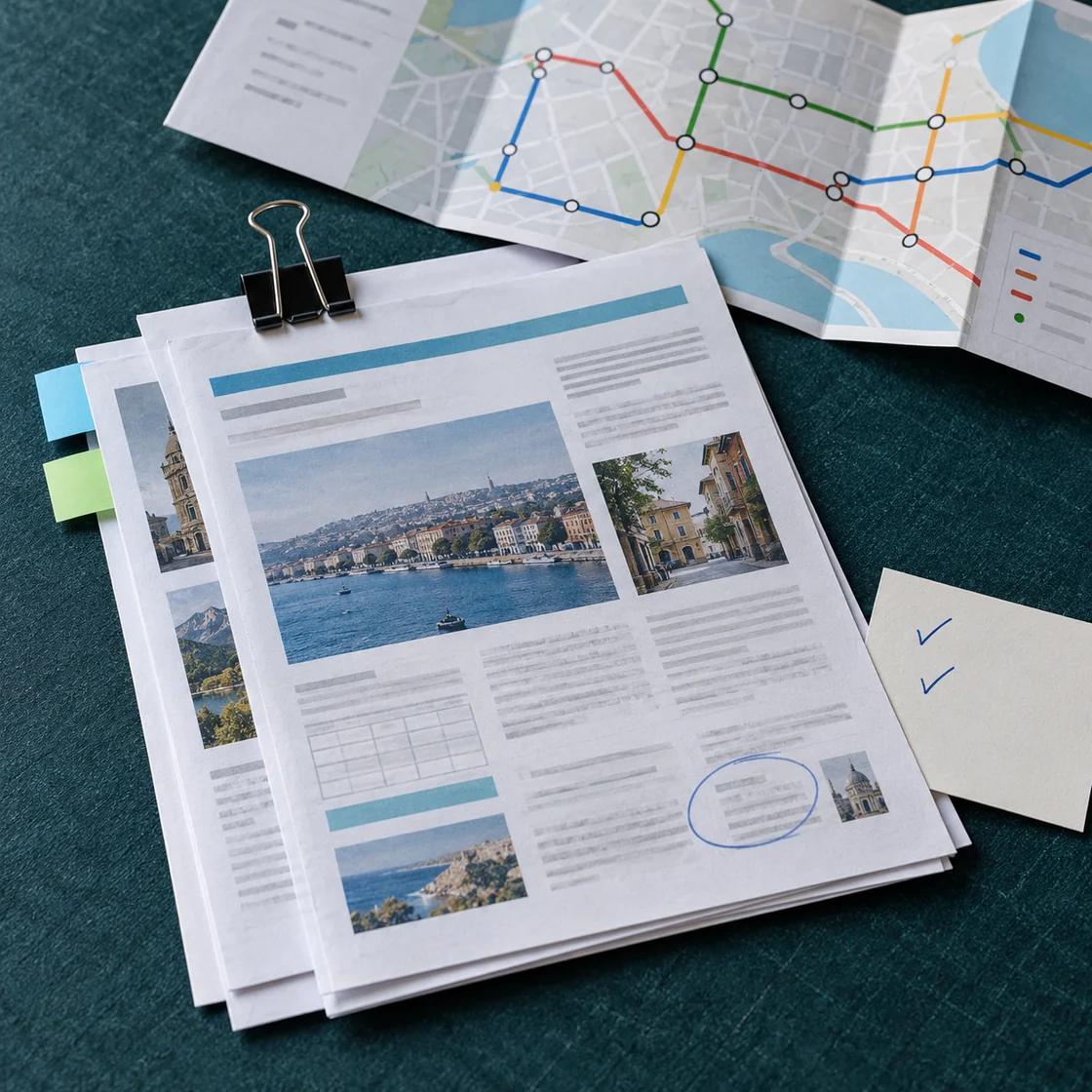
Sometimes the relationship between items matters as much as the words: a heading above a rule, a selected option or a note below a table. An image you supply to ChatMore can preserve that visible context.
Crop out private details and keep the text large enough to read. Ask ChatMore to list what is visible before drawing a conclusion. A screenshot only shows what was captured; it doesn't establish the page's current state or reveal content outside the image.
For the museum example, a screenshot might help identify which entrance note belongs to your entry slot. It still cannot answer the cloakroom question unless that information is visible.
Use the screenshot analysis guide for prompts that separate visible facts from missing context.
Keep the facts when you change the format
Once the checklist is correct, ask ChatMore for a version you can send to the person joining you. Keep the same source notes in the conversation and specify which details must survive the rewrite.
A suitable message for the fictional example is: “Our museum slot is Saturday at 11:00, so let's arrive at 10:45 via the west entrance. Tickets are emailed and only small bags are allowed. I'll check whether there's a cloakroom before we bring anything larger.”
That message changes the presentation without turning the unknown cloakroom policy into a fact. Before sending your own version, compare the time, entrance and bag rule with the original page.
For a work-related follow-up, continue with email reply prompts for a clear next message.
Return to the source for the final check
A copied passage is a snapshot. If the venue changes its policy after you copied it, the earlier text won't reflect the change. Check the original page again when timing, availability or entry conditions matter.
ChatMore also lists web search for current questions. If you use it, inspect the supporting source and its date before acting. For a specific booking, use the venue's own current details rather than asking a model to complete missing information from general knowledge.
The final check can be short: does each instruction trace back to a supplied fact, an explicit calculation or a clearly marked question? In the example, 10:45 follows from the 11:00 slot and 15-minute arrival instruction. Cloakroom availability remains unanswered.
Read how to check an AI answer against its evidence, or use the ChatMore web research workflow when your question needs current sources.
How this guide was prepared
ChatMore's listed GPT, writing and image-analysis capabilities and Apple's text-selection and Safari Reader instructions were checked against first-party information on October 17, 2026. The museum notes, checklist and message are original worked examples, not a real venue's policy or a captured app response. In-app results and available model options may vary.
Prompts to try
Turn the checklist into a message
Write a friendly message of no more than 55 words to the person joining me, using only these fictional museum notes: entry Saturday at 11:00; arrive 15 minutes before the slot; use the west entrance; tickets are emailed; small bags only; cloakroom information is not supplied. Calculate and include the arrival time. Say I will check whether there is a cloakroom. Do not invent a booking confirmation or a new arrangement.
Check a draft against its source
Check this draft against the source passage. Separate supported facts, calculations, missing information and details the draft adds without support. Quote only the short wording needed to show a mismatch. Source: [paste the selected passage]. Draft: [paste the answer].
Read only what the screenshot shows
Read the screenshot I provide. First list the visible facts relevant to [my question]. Then answer using only those facts. Say when text is unreadable or information is missing. Do not guess content outside the screenshot.
Quick checklist
- Choose Safari for the original webpage and ChatMore for a result based on material you provide.
- Keep relevant conditions, headings and dates with copied text.
- Leave out private booking, payment and ticket details.
- Specify the output format and ask for missing facts to stay explicit.
- Check the answer against the original page before using it.
- Read the GPT options and access terms in your current ChatMore offer.
Turn a few details into your next useful result.
Download ChatMore on iPhone, check the GPT options available to you and try the visit checklist prompt. Review the answer before using it.
Download ChatMoreCommon questions
Should I use ChatMore or Safari for GPT tasks on iPhone?
Use Safari to read and check original webpages. Use ChatMore when you want GPT help turning selected text or screenshots you supply into a checklist, explanation or message. You can use both: read the source, bring relevant material into ChatMore and check the result against the page.
Is this a comparison of the official ChatGPT app and its website?
No. ChatMore is a separate iPhone app that offers GPT models. This guide explains when to use ChatMore and when to stay with a source page in Safari. It does not claim that ChatMore and OpenAI's ChatGPT share features, subscriptions or accounts.
How do I bring webpage text into ChatMore?
Select the relevant passage in Safari, copy it, open ChatMore and paste it into your message with a clear task. Include any conditions or dates needed to interpret the passage. This workflow uses a manual handoff rather than automatic access to browser tabs.
Can I use a screenshot instead of copying text?
ChatMore's listing describes image analysis and text extraction. Supply a readable image, remove private details and ask about the visible information. Check any extracted text and don't treat missing or cropped content as known.
Does ChatMore replace checking the original website?
No. A summary or checklist can help you use information, but it doesn't prove that a webpage is current or that a missing fact is true. Return to the original source when a rule, date or booking detail affects your decision.
Sources and product details
ChatMore publishes this guide. Product features, availability, limits, and prices can change; consult the current official information before choosing a plan.