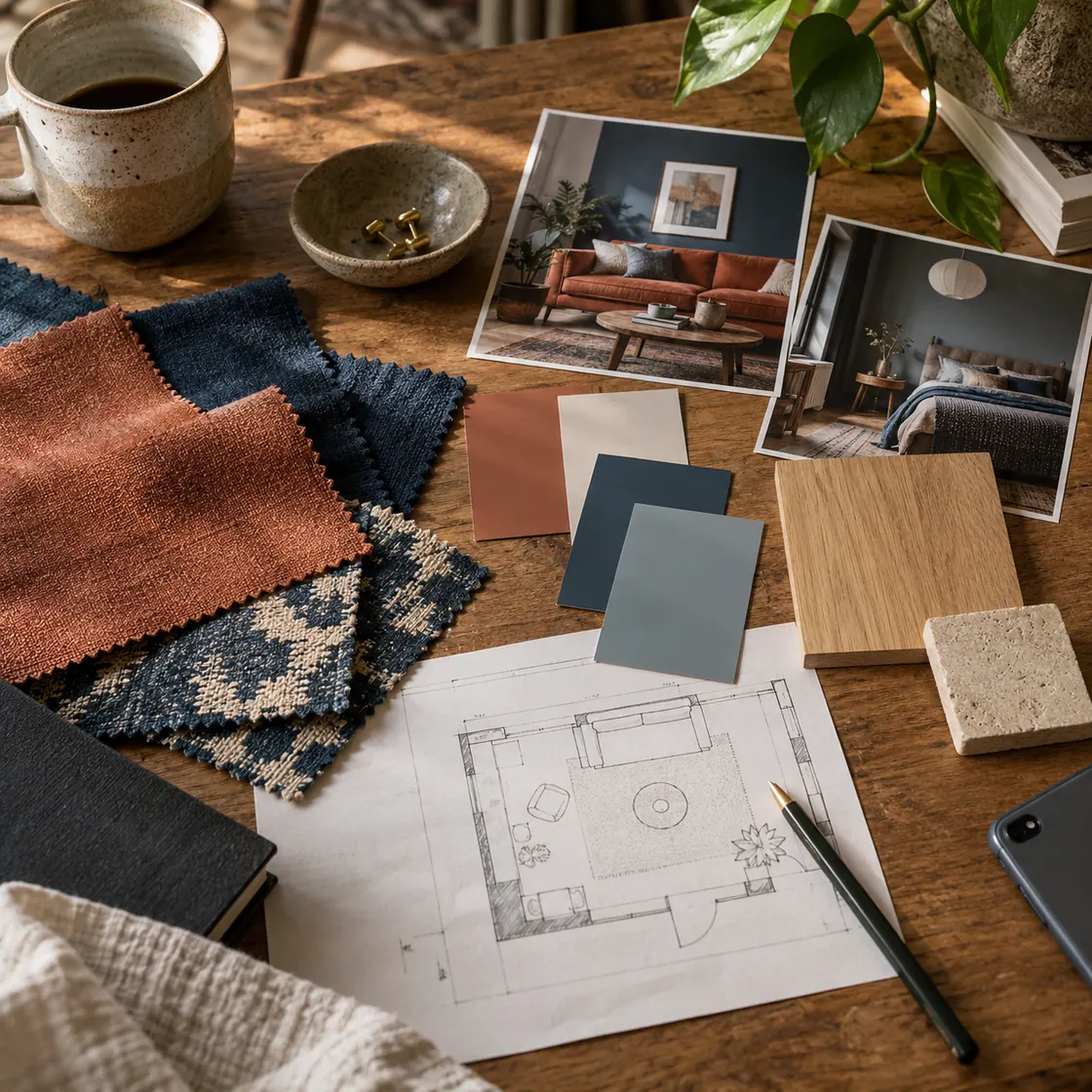
Yes, you can make a useful interior design mood board with AI on iPhone. Start with a one-line brief, add a few reference images, describe your constraints, and ask ChatMore to create a direction you can edit.
Use AI for early ideas: palette, materials, lighting mood, and furniture categories. Keep measurements, product selection, construction decisions, and final approval outside the generated image.
Write the room brief before asking for images
Open ChatMore on iPhone and start with the room, its job, the feeling you want, and what cannot change. A clear brief gives every later image the same direction.
Name unknowns too. If you do not know a measurement, say so instead of asking AI to guess it.
- Room and function: bedroom, entryway, reading corner, or shared workspace.
- Mood: quiet, bright, grounded, playful, or formal.
- Palette and materials: colors, wood, metal, stone, fabric, or texture preferences.
- Fixed features: windows, doors, radiators, flooring, furniture, and rental limits.
- Questions to verify later: dimensions, light direction, storage, safety, and real product availability.
An example brief
- 01 · InputBring context
A room photo, measurements, and two material references
- 02 · RequestAsk a focused question
Build separate palette, texture, and lighting concepts while keeping fixed features.
- 03 · CheckReview the result
Check real dimensions, materials, prices, and availability outside the image.
Example workflow
Room: small rental living room. Goal: calm reading corner. Keep: oak floor, radiator, existing sofa. Direction: warm neutrals, low visual clutter, soft evening light. Do not change walls or invent built-ins.
Add room photos and reference images
Attach one clear room photo from Photos, then add a few inspiration screenshots or generated references. Ask ChatMore to identify repeating cues such as colors, textures, shapes, and light rather than copy one source image.
You can also use live web search to collect current reference ideas, then bring only the useful screenshots into the chat. Keep the brief beside the images so the board has a reason, not only a look.
- Use a wide room photo and one closer detail photo when possible.
- Include references for materials, lighting, furniture shape, and overall mood.
- Label what is fixed, what is preferred, and what is only inspiration.
- Ask for observations first; ask for new suggestions second.
Generate concept tiles, not a pretend finished room
Use ChatMore image generation to create separate visual tiles for a palette, material pairing, lighting mood, or furniture silhouette. Separate tiles are easier to compare and arrange than one busy room image.
Ask for two or three directions with the same brief. Choose the direction that best fits the constraints, then refine only that direction.
- Palette tile: dominant, supporting, and accent colors.
- Material tile: wood, fabric, metal, stone, or finish relationships.
- Lighting tile: time of day and atmosphere, without claiming exact room lighting.
- Furniture tile: categories and silhouettes, not guaranteed products or dimensions.
Assemble the board, then ask AI to critique it
Save the strongest images and arrange them in an iPhone board or notes app with a one-line brief and short labels. The board should make one direction easy to describe; it does not need to show every idea.
Take a screenshot of the board and attach it to ChatMore for a second pass. Ask which references conflict, which practical constraints are missing, and which choices need a real-world check.
Example workflow
Ask: Review this board against my brief. Flag references that pull toward a different style, missing room constraints, and any material or furniture assumptions. End with five questions I should verify before sourcing.
Verify the direction outside the generated image
AI images can suggest a coherent direction while still changing scale, inventing objects, or blending materials that do not exist together. Use the board to decide what to investigate, not as a measurement sheet or construction drawing.
Before buying or building, check the room yourself. Confirm dimensions, clearances, material samples, lighting, installation needs, and real product details with appropriate sources.
- Measure the space and mark fixed features.
- Check sample colors and materials in the actual light.
- Confirm furniture dimensions and clearances from the real source.
- Keep generated concepts labeled as concepts when sharing them.
Prompts to try
I am planning a [room] on iPhone. Goal: [function]. Keep: [fixed features]. Avoid: [constraints]. Create a one-paragraph design direction with a four-color palette, three materials, three furniture categories, and a lighting mood. Do not invent measurements or product names.
Review these attached room and reference images. Extract repeating cues under Palette, Texture, Shape, Light, and Feeling. Then propose two distinct mood-board directions. Keep each direction to five bullets and separate observation from suggestion.
I attached my mood board. Critique it against this brief: [brief]. Flag contradictions, missing practical constraints, and references that do not support the direction. End with a short list of questions I should verify in the room. Do not claim the board proves how the final room will look.
Quick checklist
- One-line room brief states function and feeling.
- Fixed features and unknown measurements are named.
- References cover palette, materials, light, and furniture direction.
- Generated visuals are treated as concept tiles, not exact room previews.
- Board commits to one direction instead of collecting every attractive idea.
- Screenshot critique checks contradictions and missing constraints.
- Real dimensions, samples, clearances, and product details are verified separately.
Try the workflow on your iPhone.
Open ChatMore with a question, a draft, or a screenshot. Check the result, then refine it for your task.
Download ChatMoreCommon questions
Can I make an interior design mood board with AI on iPhone?
Yes. Attach a room photo and references in ChatMore, describe the brief and constraints, generate a few palette or material directions, and arrange the best ideas into a board you can review.
Can AI show exactly how my room will look?
No. AI can help explore a visual direction, but generated images can change scale, details, materials, or fixed features. Use them for ideas and verify the room with measurements, samples, and real product information.
What should an interior design mood board include?
Include a one-line brief, a small color palette, material and texture references, key furniture categories, lighting mood, and a short explanation of why the choices fit the room.
Sources and product details
ChatMore publishes this guide. Product features, availability, limits, and prices can change; consult the current official information before choosing a plan.
- ChatMore on the App Store
- Adobe Firefly: Interior design mood boards
- Milanote: Moodboarding
- Morpholio Board for iPhone user guide