AI image generation on iPhone works best when you treat the phone as a fast creative workbench: capture the idea, write the first prompt, compare a few directions, then refine the version that has the strongest potential. ChatMore is built for that loop because image generation sits next to AI chat, photo edits, screenshots, web search, and focused assistants.
Start with the job, not the style
A common mistake is starting with a style word like "cinematic" or "minimal" before deciding what the image needs to do. Instead, begin with the job. Are you making a profile image, product concept, thumbnail, social post, presentation visual, wallpaper, or mood board?
Once the job is clear, the prompt becomes easier to control. A useful structure is: subject, setting, action, mood, visual style, framing, and what to avoid.
Example prompt: "Create a clean product-style image of a black iPhone on a dark desk, glowing AI chat interface on screen, soft blue rim light, realistic studio photography, lots of empty space for headline text, no hands, no extra logos."
An example brief
- 01 · InputBring context
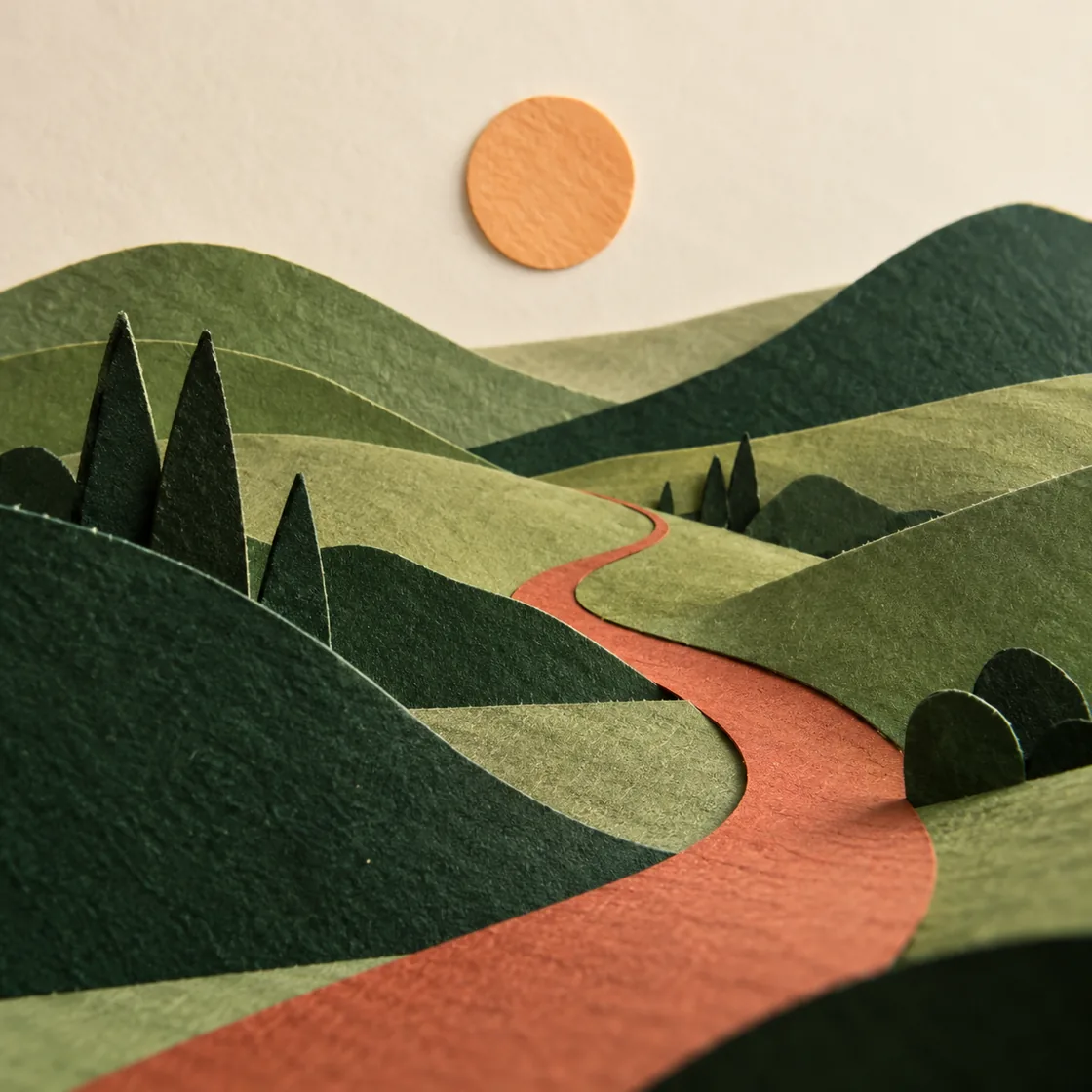
A landscape image for a quiet editorial cover
- 02 · RequestAsk a focused question
Specify layered paper mountains, a warm sun, a simple crop, and no text.
- 03 · CheckReview the result
Compare composition and texture with the brief before refining one detail.
Use a five-step image workflow
- Define the job: decide where the image will be used and what it must communicate.
- Build the prompt: add subject, setting, mood, style, framing, lighting, and constraints.
- Generate directions: create several meaningfully different options instead of chasing one perfect first result.
- Refine one variable: change composition, subject scale, background, palette, or realism one step at a time.
- Finish outside the generator: verify text, rights, dimensions, accessibility, and production details before publishing.
Save the strongest prompt and note which change improved the result. That turns one successful image into a repeatable workflow for future thumbnails, posters, product concepts, or social visuals.
Make the prompt specific enough to guide the model
Specific does not mean long. It means the model knows what matters. If the image is for a social post, mention the layout. If it is for a product concept, mention the camera angle. If it is for a profile image, mention the expression, background, lighting, and crop.
- For product visuals, specify the object, material, background, lighting, and empty space.
- For portraits, specify pose, expression, environment, crop, and realism level.
- For thumbnails, specify a bold focal point, high contrast, and where text will sit.
- For wallpapers, specify aspect ratio, pattern density, depth, and color palette.
Use chat to improve the prompt before generating
ChatMore is useful because you can ask AI to sharpen the prompt before you generate the image. This gives you a concrete prompt to revise. Start with your rough idea, then ask ChatMore to rewrite it for a specific outcome.
Try asking: "Rewrite this as a strong AI image prompt for a realistic iPhone product visual. Keep it concise, include lighting, framing, and negative details."
This is also where you can ask for variations: one realistic version, one editorial version, one playful version, and one clean app-store-style version. The goal is not to write the perfect prompt first. The goal is to generate a useful set of options quickly.
Compare variations like a designer
When the first images come back, look for clarity before polish. Can someone understand the image in one second? Is the subject obvious? Does the lighting support the message? Is the composition clean enough for the place you want to use it?
If a result is close but not right, refine one thing at a time. Change the framing, simplify the background, make the subject larger, or ask for a more realistic material. Small prompt changes make it easier to learn what is improving the output.
Generate logo concepts without overclaiming the result
ChatMore can help explore logo directions from a business name, audience, personality, symbol, palette, and visual constraints. Treat the output as concept material. Generated lettering can be inconsistent, and a useful identity still needs checks for readability, originality, scalability, and trademark conflicts.
Example prompt: "Create three minimal logo concepts for [business], serving [audience]. Use a simple [symbol], [palette], strong silhouette, flat background, and no mockup. Keep lettering separate so I can verify and rebuild it in a design tool."
Build poster concepts around hierarchy and empty space
A poster prompt should define the audience, event or message, focal point, mood, format, and where copy will sit. Ask for visual hierarchy and deliberate empty space. Verify all generated text, dates, names, logos, and production dimensions before publishing or printing.
Example prompt: "Create a vertical poster concept for [event]. Use [visual direction], one clear focal point, high contrast, and clean empty zones for headline, date, and call to action. Do not render final text; show layout placeholders instead."
Use photo edits when an existing image is the better starting point
Sometimes the fastest path is not a blank prompt. If you already have a selfie, product shot, screenshot, or rough image, use the AI photo editor flow to transform it. That gives the model stronger context and often produces a result that feels more relevant to the thing you are actually making.
Quick checklist
- Decide the job the image needs to do.
- Write a prompt with subject, setting, mood, style, framing, and constraints.
- Ask ChatMore to improve the prompt before generating.
- Generate a few different directions rather than one perfect attempt.
- Refine the best result one change at a time.
Frequently asked questions
Can ChatMore generate logo concepts on iPhone?
Yes. Use prompts to explore visual directions, then verify lettering, symbols, originality, scalability, and trademark considerations before treating a concept as a finished identity.
Can ChatMore create poster concepts?
Yes. Describe the subject, audience, mood, layout, focal point, and space for copy. Verify generated text, dates, names, and final production details in a design tool.
How should I improve an AI image prompt?
Specify the image job, subject, setting, mood, style, framing, lighting, constraints, and what to avoid. Compare results and refine one variable at a time.
Generate images with ChatMore on iPhone.
ChatMore combines AI image generation, chat, photo edits, screenshot analysis, live web search, and focused assistants in one iPhone app.
Download ChatMoreSources and product details
ChatMore publishes this guide. Product features, availability, limits, and prices can change; consult the current official information before choosing a plan.